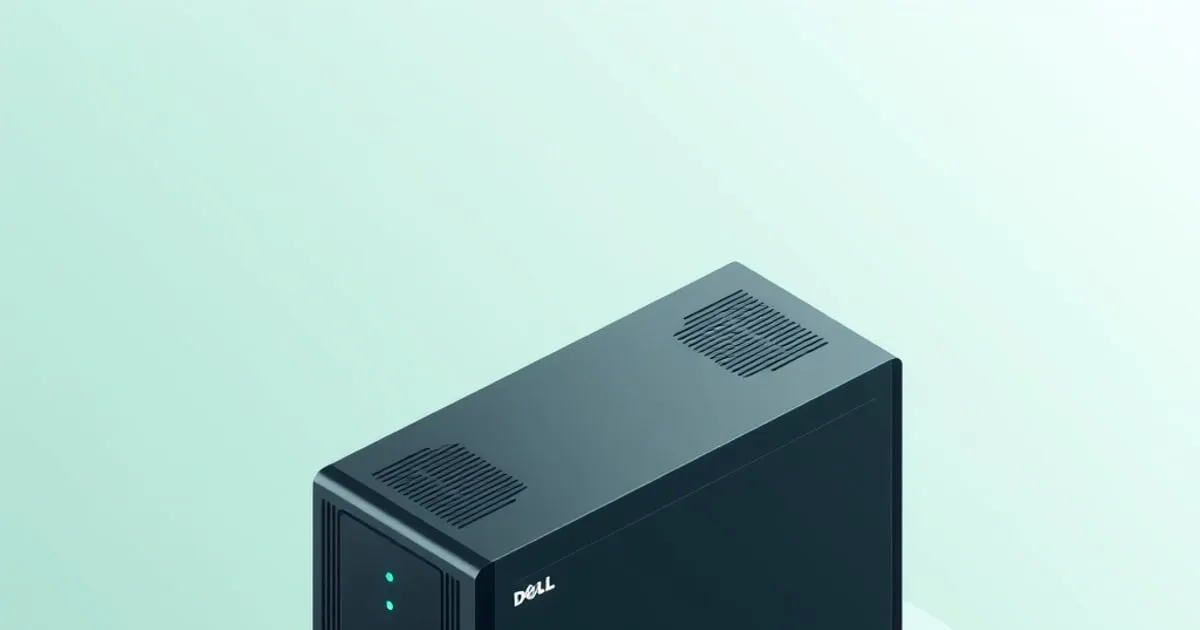
Thin Client Homelab: Turn a $40 Wyse 5070 Into a Server
The Dell Wyse 5070 is the best cheap x86 homelab box you can buy used. Here's what it idles at, what the Extended model adds, the storage and RAM
The Dell Wyse 5070 is the thin client I recommend before anything else when someone wants their first x86 homelab box and has $40 to spend. I bought my first one for $38 shipped off eBay, dropped in a SATA SSD and a 16GB RAM stick, and it has been running Pi-hole, Unbound, a WireGuard endpoint, and Uptime Kuma for fourteen months without a single unplanned reboot. It idles at 6 watts.
Thin clients have been a homelab staple for years, but the 5070 is the one that hits the sweet spot in 2026: recent enough to run a modern kernel cleanly, cheap enough to buy two, and low enough on power that you forget it’s plugged in. This guide covers the two variants, the upgrade ceilings, and what the box can and can’t do.
Why the 5070 specifically
There are dozens of usable thin clients on the secondhand market — HP T620/T630/T640, older Wyse 3040/5060, Fujitsu Futro. I’ve run most of them. The 5070 wins for a few concrete reasons:
- Modern enough CPU. The standard model uses an Intel Gemini Lake Pentium Silver J5005 (4 cores, 4 threads). That’s a real x86_64 chip with AES-NI and hardware video decode — not the anemic dual-core SoCs in older units.
- DDR4 SODIMM, user-accessible. One slot, officially 8GB, unofficially 16GB works on almost every unit. No soldered-RAM dead end.
- M.2 2280 and SATA options. Depending on the model you can run an M.2 SATA drive plus, on the Extended, a 2.5” SATA bay.
- It sips power. 5–7W idle on the standard model with one SSD and 16GB RAM is normal. That’s thin-client territory, not “old desktop pretending to be efficient.”
- Cheap and abundant. Corporate refresh cycles dumped these by the pallet. $35–$70 depending on configuration and RAM.
Standard vs Extended: the one decision that matters
There are two chassis. Get this right before you buy.
| Wyse 5070 (Standard) | Wyse 5070 Extended | |
|---|---|---|
| CPU | Pentium Silver J5005 (4C/4T) | Celeron J4105 or Pentium J5005 |
| Height | Slim (~1.3 in) | Taller (~2.6 in) |
| PCIe slot | None | One low-profile PCIe x8 (x4 electrical) |
| 2.5” SATA bay | No | Yes |
| Idle | 5–7W | 7–10W |
| Typical price | $35–$55 | $55–$90 |
The Standard is the right pick for a DNS/VPN/monitoring node where storage is small and you’ll never add a card. The Extended is what you want if you plan to add an Intel quad-port NIC for a router build, a 10GbE card, or an LSI HBA for a couple of disks. The PCIe slot is the entire reason the Extended exists and costs more — if you don’t have a card in mind, save the money and buy the Standard.
There’s also a rare AMD-based 5070 variant; it’s uncommon and the Intel J5005 unit is the one with the best Linux support and the lowest idle. Stick with Intel.
RAM and storage ceilings
The honest limits, from my own units:
- RAM: One DDR4 SODIMM slot. Dell rates it at 8GB. In practice 16GB works on every 5070 I’ve put a stick in, and I’ve seen reliable reports of 32GB on the J5005 units (the J4105 is firmer at 16GB). Buy a single 16GB DDR4-2400/2666 SODIMM and you’re set for any thin-client workload.
- Boot storage: Most units ship with a tiny soldered or M.2 eMMC/SSD (8–32GB) running ThinOS or Wyse’s Linux. Ignore it. Add an M.2 2280 SATA SSD — the slot is SATA, not NVMe, so don’t buy an NVMe drive expecting full speed. 256GB–1TB is plenty.
- Extra storage (Extended only): The 2.5” bay takes a SATA SSD. A 1–2TB SSD here turns the box into a tiny file/backup node.
The M.2-is-SATA-only point trips people up constantly. An NVMe drive will sometimes physically fit but won’t be detected, or will fall back. Buy an M.2 2280 SATA SSD (Kingston A400 M.2, WD Blue M.2 SATA, etc.) and avoid the confusion.
What I actually run on a 5070
This is the workload on my main Standard unit, 16GB RAM, 256GB M.2 SATA SSD, Debian 12 minimal, idling at 6.3W warm:
| Service | Role | Approx RAM |
|---|---|---|
| Pi-hole | Network ad/tracker blocking | 110MB |
| Unbound | Recursive DNS resolver | 40MB |
| WireGuard | VPN back into the home network | negligible |
| Uptime Kuma | Status monitoring + alerts | 110MB |
| Tailscale | Mesh access without port-forwarding | 50MB |
| Caddy | Reverse proxy for the above | 70MB |
Total RAM in use sits around 1.8GB of 16GB. CPU averages 2–5%. This is the classic “infrastructure box” role and the 5070 Standard handles it without ever working hard. The team at DockerHomeLab ↗ has tidy Compose files for most of these if you’d rather containerize them than run them on the host.
Where it runs out of room
I want to be honest about the ceiling so nobody buys one expecting a Proxmox cluster node:
- Media transcoding. The J5005 iGPU can hardware-decode H.264 and HEVC, so one direct-play or single light Jellyfin transcode is fine. Two simultaneous transcodes, or 4K HEVC tone-mapping, will choke it.
- Heavy databases. A small Postgres for one app is fine. Elasticsearch, a busy Postgres, or anything memory-hungry will hit the 16GB wall fast.
- Lots of VMs. You can run Proxmox and one or two tiny VMs, but four cores and 16GB don’t go far. If VMs are your goal, an N100 or N305 box is the better tool — see my N100 vs N305 vs N97 comparison.
- Container sprawl. 8–12 light containers is comfortable. Beyond ~15 you’ll want more RAM than the box can take.
If your service list is growing past what a thin client handles, that’s the signal to step up to a proper mini PC. My Intel N100 buying guide covers the next tier up, and the $200 N100 build is the obvious upgrade path when the 5070 stops being enough.
Buying and setup checklist
- Confirm the variant. Listings often just say “Wyse 5070.” Ask the seller for the height or model code, or look for the PCIe slot in photos if you need the Extended.
- Confirm the PSU is included. The 5070 uses a Dell barrel-jack adapter (around 65W). Replacements exist but factor $10–$15 if it’s missing.
- Plan to replace storage. The factory eMMC/SSD is too small. Budget a 256GB+ M.2 SATA SSD.
- Add 16GB RAM. The single biggest improvement you’ll make. A 16GB DDR4 SODIMM is ~$25–$35.
- Update the BIOS and set “AC Recovery” / “Restore on AC Power Loss” to On so it comes back after an outage. This is the single most-forgotten setting on any 24/7 box.
- Enable deep C-states in BIOS if idle is higher than 7W on a Standard unit — see my notes on measuring idle wattage for what the numbers should look like and how to chase down a few stray watts.
Bottom line
For a first homelab box, a DNS/VPN/monitoring node, or a cheap second machine for redundancy, the Wyse 5070 Standard at $35–$55 is the best value in low-power x86 right now. Add 16GB of RAM, a 256GB M.2 SATA SSD, run Debian, and you’ve got a 6-watt always-on server for under $90 all in.
Get the Extended only if you have a PCIe card in mind — a router NIC, a 10GbE card, an HBA. Otherwise the Standard does everything most people need a thin client to do, and it does it on less power than a phone charger.
For deciding which services to run first on a box this size, SelfhostRealm’s beginner guide ↗ sequences a sane first stack before you fall down the self-hosting rabbit hole. And if storage is becoming the bottleneck, TrueNASGuide ↗ covers when an internal SSD isn’t enough and you need a real NAS alongside the thin client.
Related

HP T620, T630, T640 Thin Clients as Homelab Servers
Used HP thin clients are still the cheapest entry into an x86 homelab. Here's what each generation actually idles at, what you can run on them, and the

UPS Sizing for a Mini PC Homelab: Runtime, VA Math, and What I Actually Run
Picking a UPS for a 10-30W mini PC homelab is about runtime, not VA. The math, the trap with cheap line-interactive units, and the models worth buying.

Lenovo ThinkCentre Tiny vs N100 Mini PC for a Homelab
Used Lenovo M720q/M920q/M75q Tiny vs new Intel N100 mini PCs for a 24/7 homelab — idle wattage, expandability, BIOS quality, and which is the better buy.